
Allow Windows access
Open Windows 11 Privacy & security and confirm Camera and Microphone access are enabled for desktop apps.
B.O.B.™ PRODUCT SUPPORT
Download B.O.B. Free, open the official tutorials, work through guided troubleshooting or send a privacy-conscious support request.
Use the focused two-page tutorials in order or download the complete eight-page Windows 11 guide.
Understand readiness, profiles, devices and detected meeting apps.
2 pages · PDFDownload PDF ↓02Scan, test and save your preferred camera, microphone and speakers.
2 pages · PDFDownload PDF ↓03Allow camera and microphone access for desktop apps in Windows 11.
2 pages · PDFDownload PDF ↓04Check Teams, Zoom, Meet, Webex and Slack detection and current limits.
2 pages · PDFDownload PDF ↓Most readiness problems begin with Windows privacy controls, a device already in use, a loose connection or different meeting-app selections.
Open Windows 11 Privacy & security and confirm Camera and Microphone access are enabled for desktop apps.
Exit any app already using the camera or microphone, reopen B.O.B. and run the hardware scan again.
Reconnect USB or Bluetooth hardware, confirm Windows recognizes it and then rescan in B.O.B.
Match the saved camera, microphone and speaker inside your meeting app before joining.
GUIDED TROUBLESHOOTING
Open the closest issue and work through the steps in order. If it continues, collect the diagnostics below.
Still need help? Contact BitTrib →These details help isolate a problem without collecting recordings, transcripts or unrelated system data.
Open Settings → System → About. Note the Windows 11 edition, version and OS build.
Note the version shown in B.O.B. About. If it is unavailable, include the installer or package filename.
Record the exact action, message and approximate time. Avoid repeatedly changing a working profile.
Copy the camera, microphone and speaker model names shown on the Hardware screen.
Include the conferencing app, its version and whether it came from Microsoft Store, a website or a browser.
Crop screenshots to the relevant setting or error. Send diagnostic files only if BitTrib specifically requests them.
Ask your administrator whether camera, microphone or local app storage is controlled by organizational policy. Do not bypass organizational security controls.
CONTACT B.O.B. SUPPORT
Include only information relevant to the problem. Required fields are marked with an asterisk.
Review local device processing, support communications, analytics and planned services.
Read policy →02Review the license, acceptable use, third-party services, disclaimers and termination terms.
Read EULA →03See the current Free status and how future direct or Microsoft Store purchases will be handled.
Read purchase information →Four clean landscape images prepared from the supplied B.O.B. screens, with no added promotional claims or unsupported features.
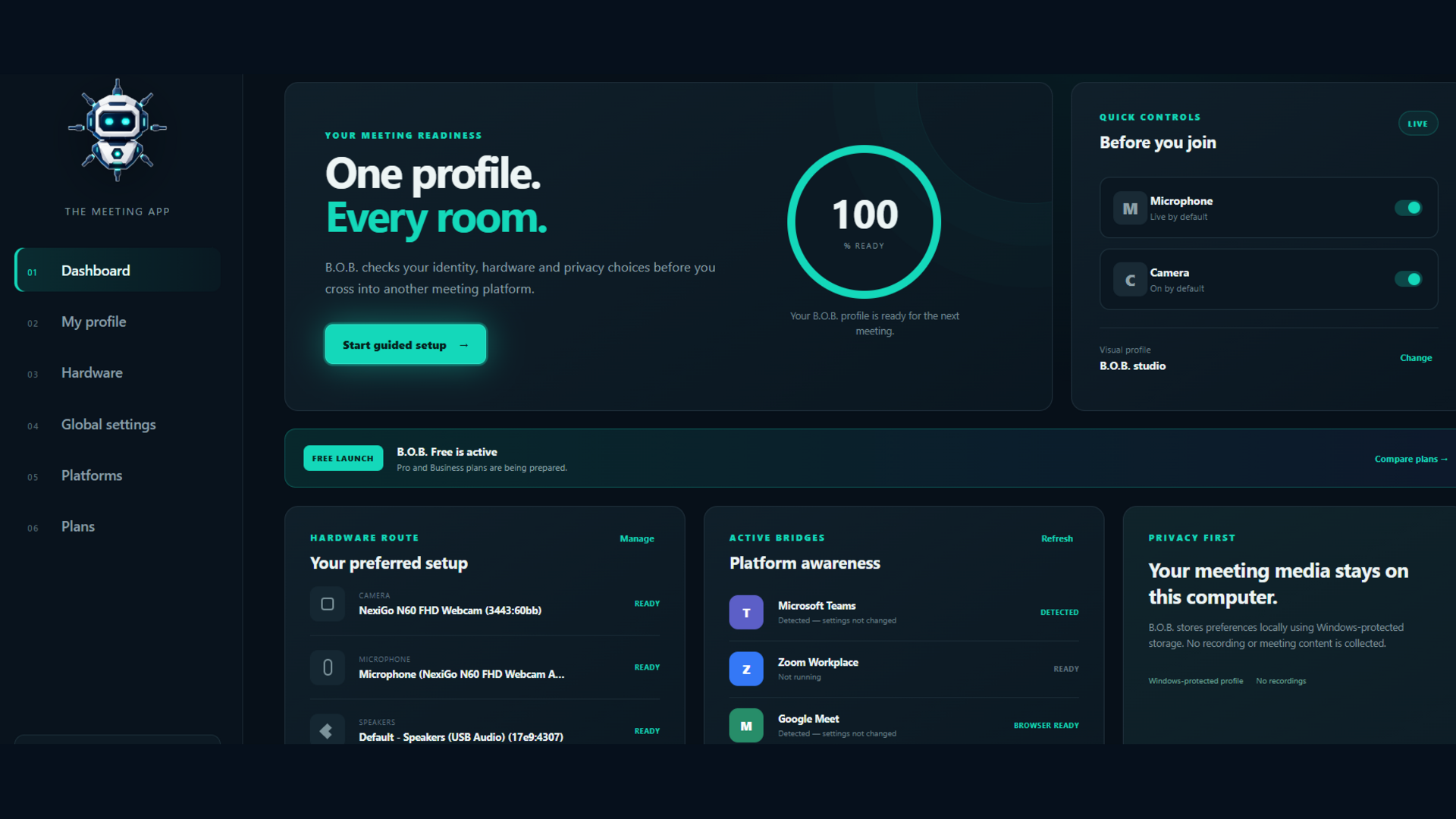
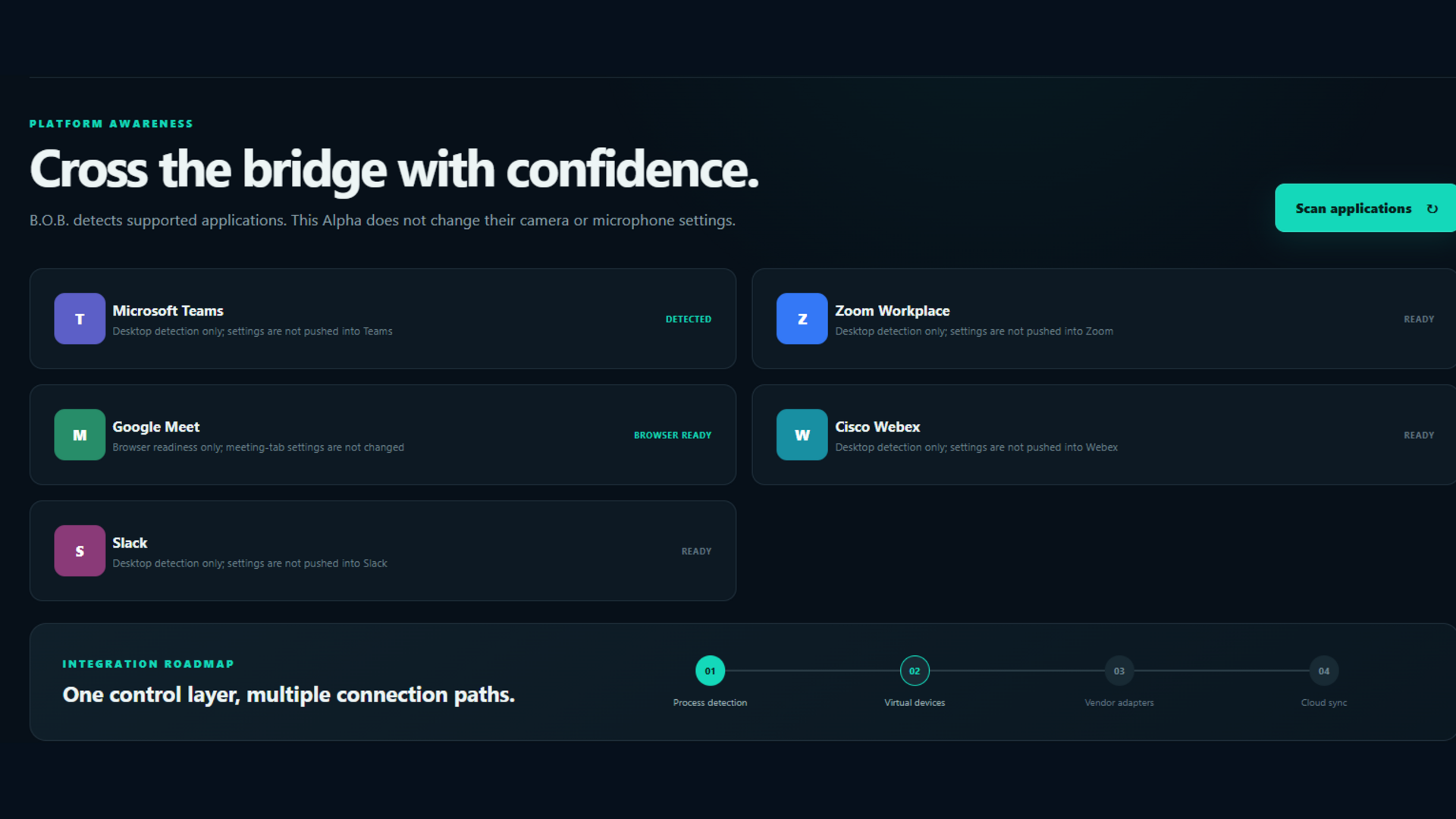
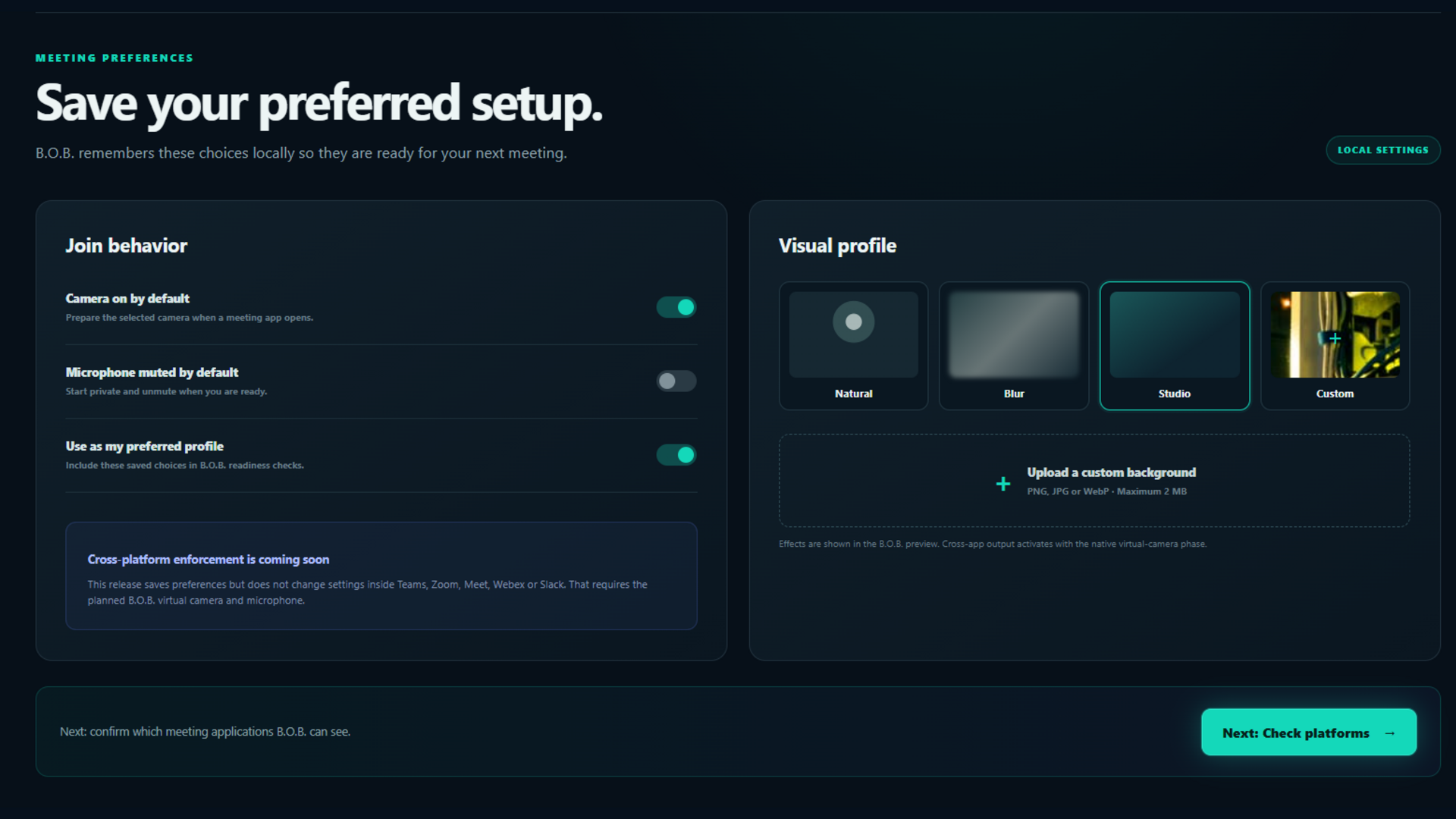
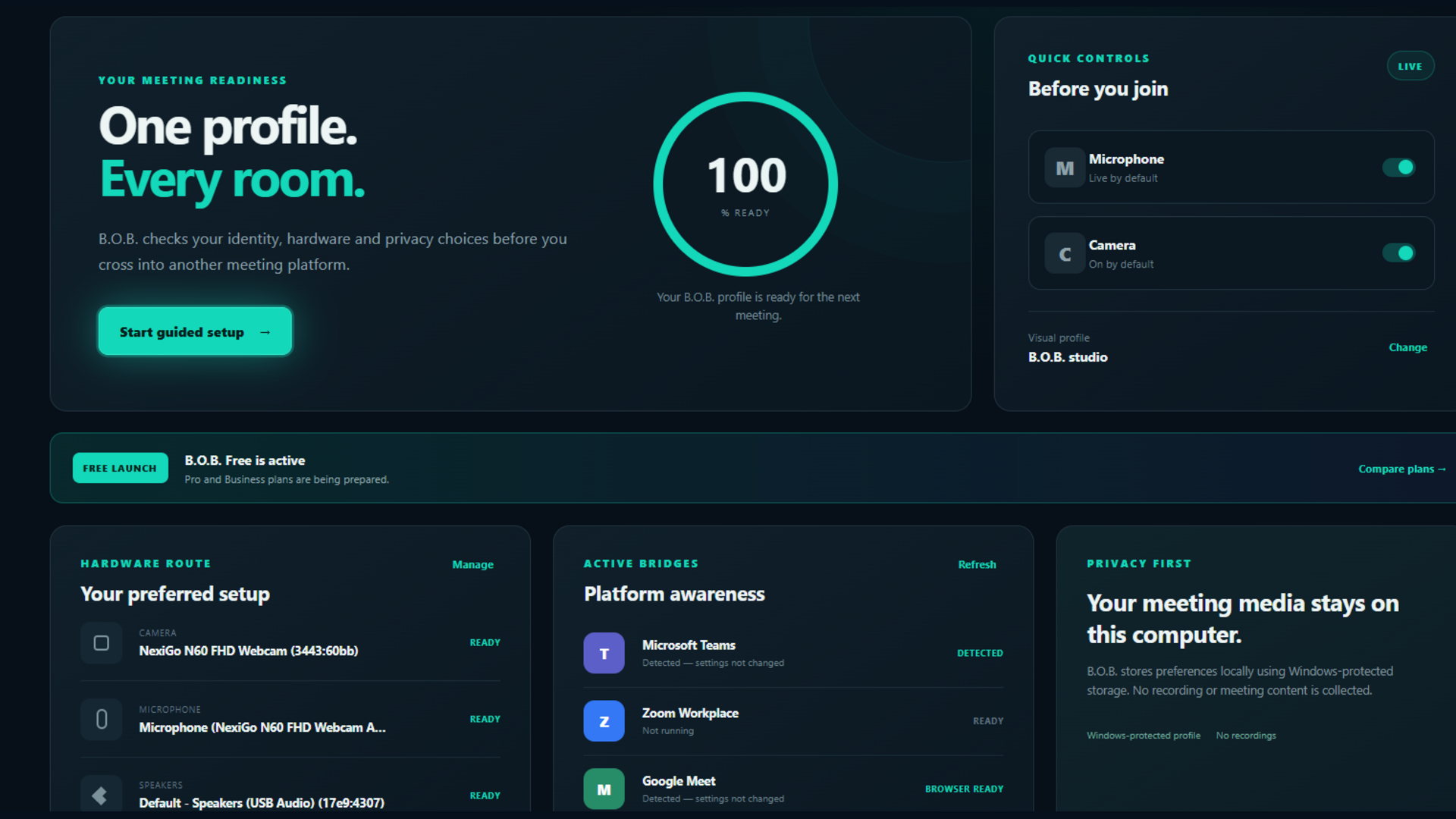
Store screenshot packageFour 1920 × 1080 PNG files plus captions and submission notes.
Download all (.zip) ↓COMMON QUESTIONS
The four individual Windows 11 tutorials and one combined eight-page guide are available in the Tutorials section above as direct PDF downloads.
No. Camera previews and microphone level measurements are processed locally for user-directed testing. B.O.B. does not record, transcribe, store or upload meeting conversations.
Not in the current Free release. B.O.B. stores a local preferred-device plan and helps you prepare, but you must confirm matching devices inside each conferencing application.
The current B.O.B. release is designed for Windows 11. Future platform or deployment options remain labeled Coming Soon or Planned until available.
Include Windows 11 edition, version and OS build; B.O.B. version; device and meeting-app names; the exact message; and the steps that reproduce the problem. Send diagnostic files only if BitTrib asks for them.
Detection reports whether a supported application is present. The current Free release does not push camera or microphone settings into Teams, Zoom, Meet, Webex or Slack.
B.O.B. Free has no subscription charge. Pro and Business remain Coming Soon and are not currently purchasable. Any future paid purchase will show its controlling terms before checkout; Microsoft Store purchases are also subject to Microsoft's purchase and refund process.
BitTrib publishes the B.O.B. Privacy Policy, End User License Agreement and Refund & Cancellation Information in the Legal section above and in the site footer.